- DATE:
- AUTHOR:
- Dutchie Product Team
Dutchie POS: Merge Retail ID packages; UX updates for Metrc integration settings; FL, VT, and AL compliance enhancements; fixes
Projected release dates: 6/15/26-6/18/26, unless otherwise noted. Subject to change.
Enhancements
Inventory
Merge Retail ID packages
Select any two packages with the same label source from the Inventory list and then Bulk actions > Manage retail IDs > Merge packages.

Choose which package will be the “surviving” package. The other package’s quantity will be merged into the surviving package and only the surviving package will be available post-merge.
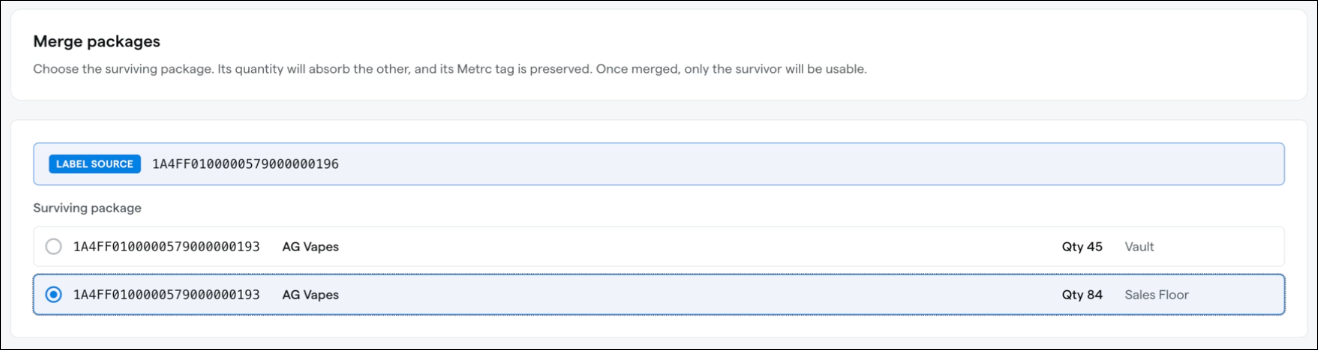
Note that the Merge Packages option is only available if you’ve selected exactly two packages from the same source package (label source). Metrc does not support merging more than one package or merging packages from different sources.
Download barcode images from the Print Labels modal
Use barcodes in digital menus, signage, or compliance documents without reprinting labels.
Select packages and open the Print Labels modal to see the new Download barcodes button
Downloads one SVG barcode image per selected package
Files are named by serial number for easy identification (e.g., barcode-1A234B.svg)
SVG format scales to any size without losing quality
The Download barcodes option is only available when selected packages have a serial number
We’re adding a Subroom column to inventory audits to provide more granular visibility into inventory’s current location.
Loyalty & Marketing
The Workflows list will now display draft workflows that have been archived. Select Archived from the Status filter dropdown to show archived workflows.
Metrc integration settings
The Metrc integration settings interface will be getting an update with some new setting names and tooltips to better explain how various settings work, as well as an optional new Grouped view that allows you to navigate settings by subject.
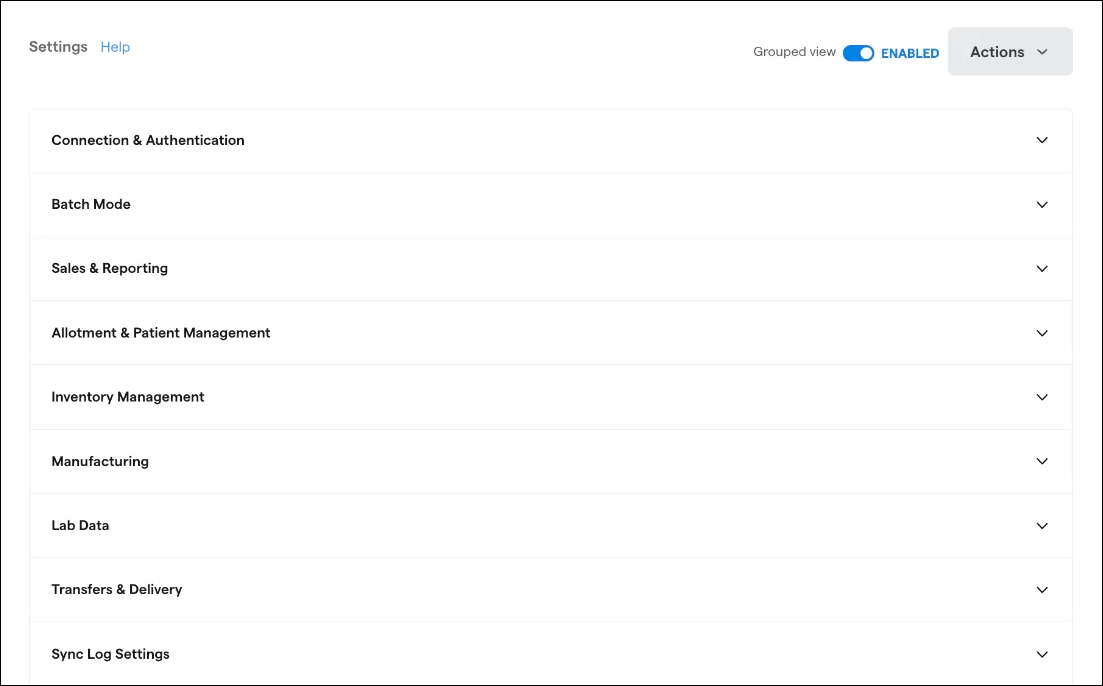
There is no change to the functionality of any of the settings themselves; this is just a visual upgrade to make Metrc settings easier to navigate and understand.
Register
As part of some under-the-hood performance and stability upgrades for carts, you may notice some minor behavior changes when building and interacting with active carts:
Automatic fees will no longer apply to empty carts and instead will apply once the first item is added.
If a user attempts to apply a manual or code discount or discount code to an ineligible item, other discounts will not recalculate and return to their previous state until the item in question is removed and re-added to the cart.
Changes made to the following fields in the Backoffice will not populate to an existing cart until the affected item is removed and re-added:
Tags
Brand
IL Tax Category
Batch
Tax Category
Product Category
Taxes and fees are no longer recalculated automatically when a cart is loaded. So, if you make changes to taxes or fees in the Backoffice, you will then need to remove and re-add an item in active carts to get taxes and fees to recalculate and reflect your updated configuration. As a longstanding best practice, we recommend configuring or editing taxes and fees outside of business hours whenever possible.
If a price is edited in the Backoffice, product search in the Register may temporarily display a stale price even though the cart itself uses the correct, up-to-date value.
Why we're doing this
This rework improves cart speed, reliability, and resilience — especially during peak/large-volume sales days. The trade-offs above (e.g., recalculating only on edit rather than on every load) are what allow carts to perform better under heavy load.
Compliance
Florida
We’ve added the ability to check in non-medical customers and sell non-cannabis merchandise to them, such as apparel and accessories.
Non-medical customer check-in — Check in customers who are not medical patients without requiring a patient lookup.
Seamless checkout with guardrails — When serving a non-medical customer, the register will prevent checkout if the cart contains a cannabis item or delivery device. Non-cannabis sales are not reported to BioTrack.
Be sure to enable the Non-cannabis customer type and assign non-medical customers to this type. This feature is available now.
Vermont
VCCB portal submission for receives
We’re adding the ability to submit acquisition reports (receives) directly to the VCCB portal from the Backoffice, just like you already can for transfers.
Submit to CCB — On any completed receive, click "Submit to CCB," enter the IT Transfer Number, upload the vendor invoice PDF, and the submission will be queued automatically.
Separate portal credentials — Receives use their own VCCB portal login, configurable independently from your transfer credentials in Settings.
Real-time status tracking — Track submission status (Pending, Success, Failed, Manually Updated) directly from the completed receives table.
Bug fix Edible products with missing potency data (e.g., certain cultivation gummies) no longer cause portal rejections. The system now correctly calculates THC values from package weight when effective potency is unavailable.
Brand Catalog Updates
We’re adding new features to the Product Details screen in the Brand Catalog for Vermont:
Product linking lets you connect your local Dutchie POS product to a matching product in the Dutchie Global Brand Catalog. Once linked, your local product can pull in standardized information like the brand-approved name, image, and description.
Suggested matches brings intelligent brand match suggestions for each product using product name, category, strain, and brand to offer suggestions from the Brand Catalog. To act on a suggestion, click Link Product to accept it, ignore it, or manually select a different product to link.
Learn more in the Help Center.
Alabama
Patient labels for Alabama dispensaries will be updated to include all state-required information, including:
The name and medical cannabis card number of the patient
The name and medical cannabis card number of the caregiver, if applicable
The name and contact information of the registered certifying physician
The amount and type of medical cannabis being dispensed
These label fields will also be available for other markets in the label designer.
BioTrack states
Automatic Waste Package Capture for BioTrack Conversions
When reporting waste during conversions in BioTrack, the resulting waste packages are now automatically captured in Dutchie and placed in the BioTrack Destruction Manager — no manual steps needed.
A new Schedule Manufacturing Waste for Destruction setting is also available in your BioTrack settings. When enabled, waste packages are automatically scheduled for destruction and posted back to BioTrack.
Fixes
We’re releasing fixes for the following issues:
The Channel Performance widget under Reports > Marketing now correctly displays open rates for push campaigns. Previously, the Push tab showed a click-through rate metric that always displayed 0%, since click tracking isn't available for push notifications. The widget now aligns with the open rate data already shown on individual push campaign pages, giving you an accurate view of push campaign engagement.
Duplicate marketing campaigns may be created when the save process encounters a temporary delay or network interruption.
Search terms and filters are cleared when switching between locations on the Inventory page and search text remains visible in the search bar but no longer drive the inventory results. Filters are now preserved when you switch locations. Filters tied to data shared across your organization will carry over automatically. For filters that are specific to a particular location, the dropdown will be highlighted in yellow to indicate that your previously selected options may not be available at the new location with hover text "Selected options may not be available at the current location" — along with a Clear button so you can easily reset that filter. You can also click into the filter and select "none" to clear it manually.