- DATE:
- AUTHOR:
- Dutchie Product Team
Dutchie POS: Loyalty & Marketing Analytics; SMS marketing opt-in enhancements; “Smart sending” campaigns; Retail ID updates; and much more!
Projected release dates: 4/2/26-4/9/26. Subject to change.
Enhancements
Loyalty & Marketing
Loyalty & Marketing Analytics Dashboard
We’re introducing a new Loyalty & Marketing Analytics Dashboard to help you better understand and optimize the performance of your loyalty program.
With this update, you’ll be able to:
Track key loyalty metrics such as member growth, repeat visit behavior, and overall program engagement.
Measure promotion performance by seeing how specific loyalty campaigns impact sales, visits, and basket size.
Identify your highest‑value customers so you can target rewards and communications more effectively.
Spot trends over time to understand how changes to your loyalty program or marketing strategy impact customer behavior.
This dashboard is designed to give operators a clear, actionable view of how loyalty drives revenue and retention, so you can make data‑driven decisions about discounts, campaigns, and customer outreach.
Find it under Reports > Marketing:
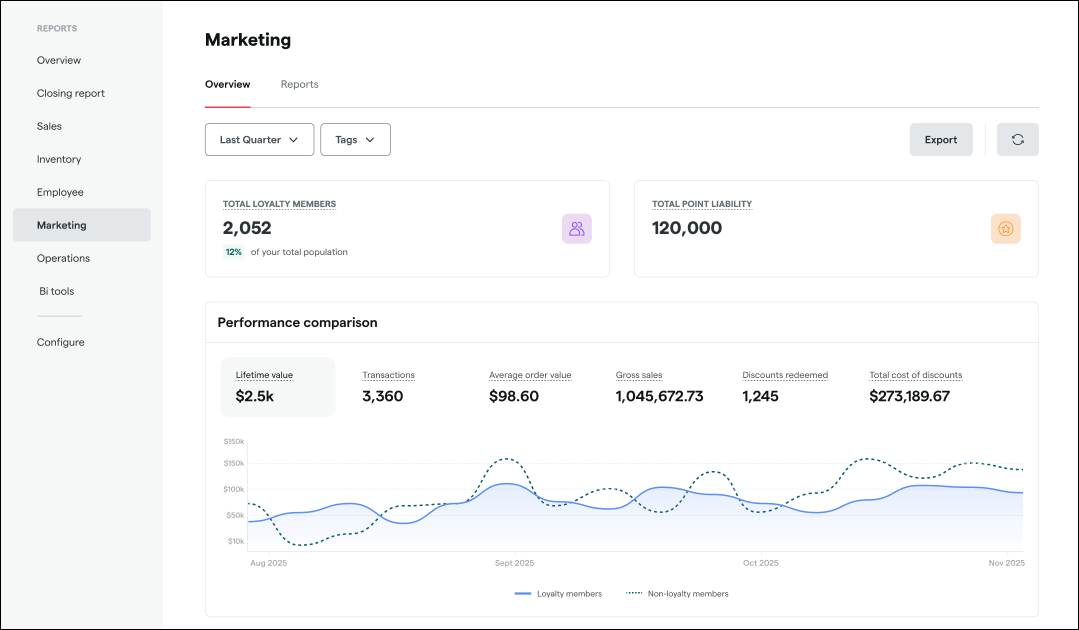
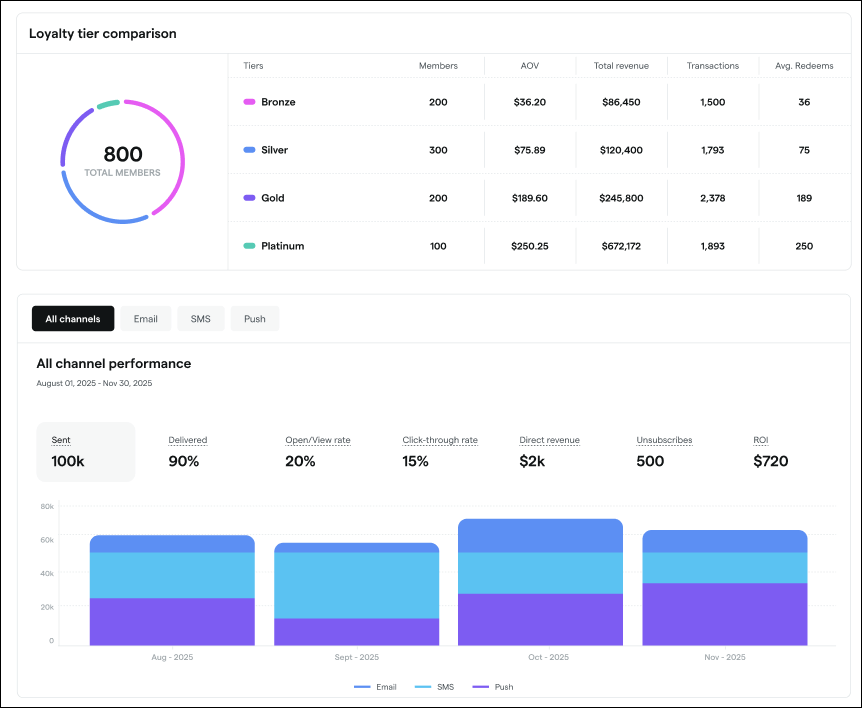
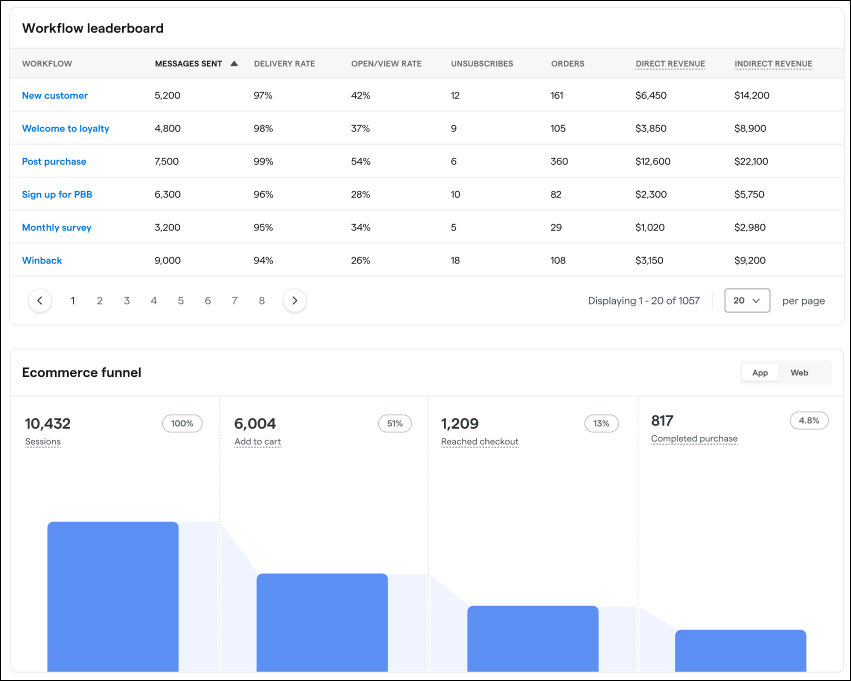
Note: the Workflow leaderboard and Loyalty tier comparison require subscription to Loyalty + Marketing Pro. The Ecommerce funnel section only includes a Web view if you don’t have a Dutchie Mobile App.
SMS opt-in
We’re adding new SMS opt-in settings to help you capture clearer consent, conform to SMS marketing regulations and best practices, build trust with your customers, and validate that customer phone numbers can receive texts.
In Marketing > Loyalty > Settings, if your Enrollment type is set to Opt-in, you’ll see two new options:
Use SMS opt-in flow at register
Use SMS opt-in flow on ecomm
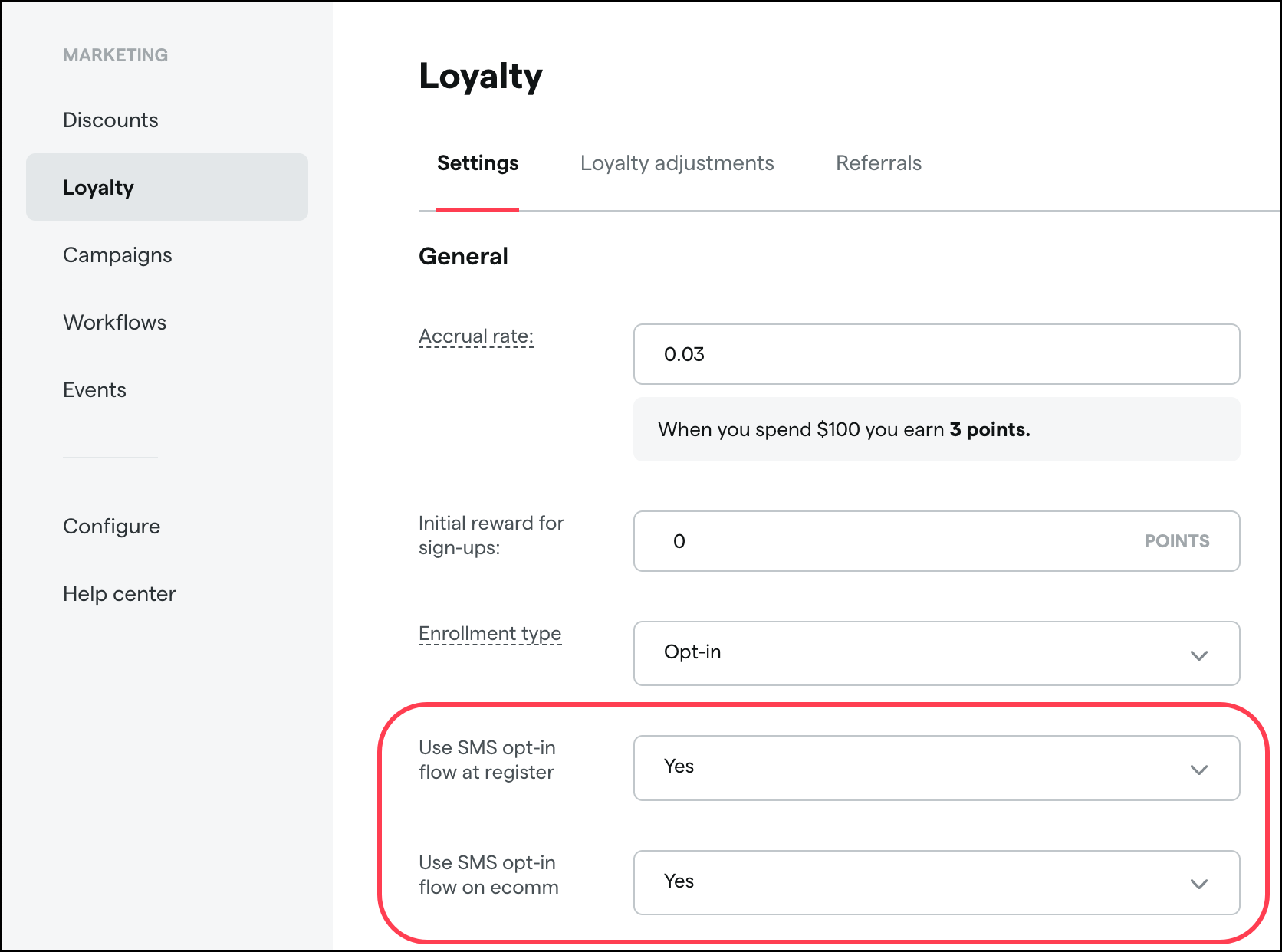
When enabled, after a customer joins your loyalty program or their SMS communication preference is updated (either by a dispensary employee in the Register or Backoffice, or by the customer in Dutchie E-Commerce), they’ll receive a confirmation text.
If they reply YES, they are opted into your loyalty program and SMS marketing messages.
If they don’t reply YES, they are opted into your loyalty program but not SMS marketing messages.
Note: Each automated opt-in message will be billed at the standard SMS rate. While this will increase your monthly SMS volume, the long-term ROI of a clean, compliant, and highly engaged list far outweighs the cost.
Smart sending campaigns
One-time blast campaigns, automated campaigns, and workflows across all channels (SMS, Email, Push) now have a Smart sending toggle which will automatically send messages to consumers two hours before their usual expected shopping time, or immediately if their expected time is less than two hours away, optimizing delivery for increased engagement and purchases. Learn more in the Help Center.
Un-link nationwide loyalty profiles
We’re introducing a way to un-link nationwide loyalty profiles:
Click the ellipsis (…) next to a national profile
A multi-select table that shows the following columns:
Customer name
Which profile is primary
Loyalty balance for each LSP profile
Date of birth
LSP name (column header “Market”)
Phone number
Email
Click Next to review:
Data from table
Loyalty points from LSP profile selected
Sum of national points balance minus loyalty points from LSP profile selected
Click Unlink to remove that LSP profile from the org profile
Inventory
Retail ID updates
We’ve made the following updates to Metrc Retail ID functionality in the Backoffice. These updates are available now:
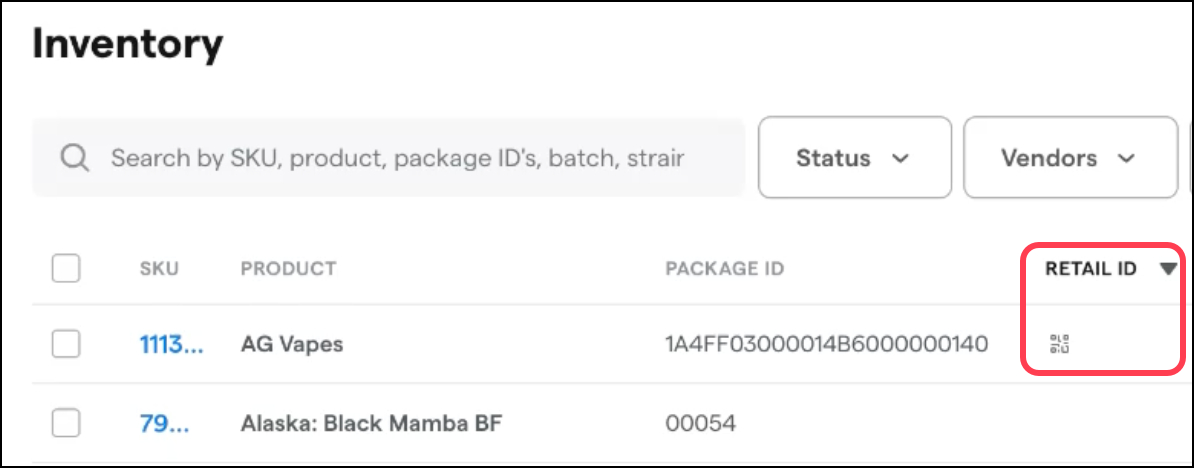
The QR icon has moved to its own sortable column on the Inventory table and no longer appears next to the Package ID.
This column is not displayed by default. Click the cog wheel on the Inventory table to enable and place it where you want it in the table (such as next to the Package ID column)
Click the column header to group packages that have Retail IDs together.
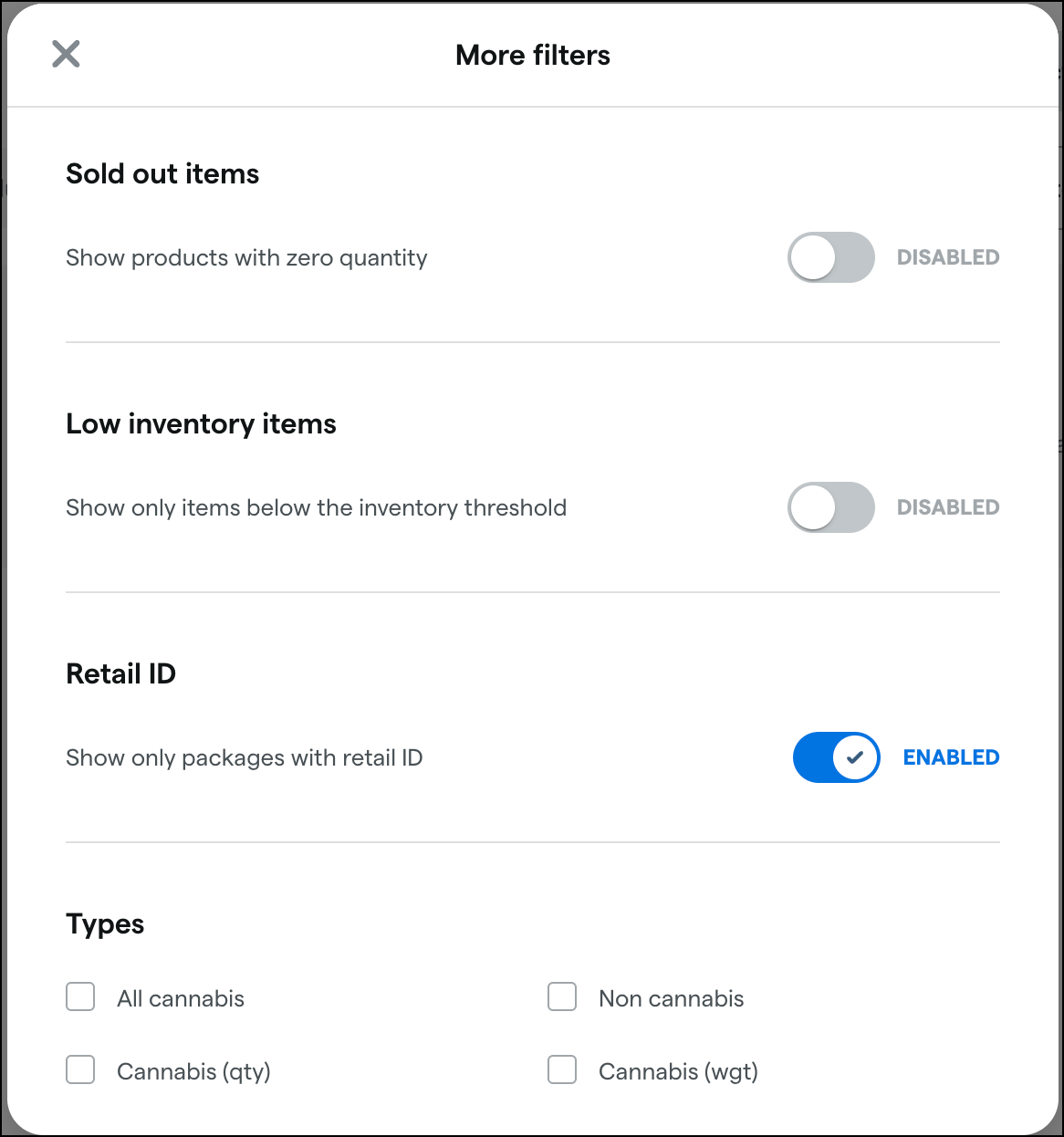
You can now filter the Inventory table to only show Retail ID packages. Click the More filters button and then toggle Show only packages with retail ID.
When you click Print Retail ID labels, Dutchie will also auto-generate Retail IDs for the selected package(s), making the Generate Retail ID step unnecessary.
View Retail IDs now only shows a list of Retail ID QR codes that have been sold to a consumer instead of all QR codes associated with the package.
Batch name fallback logic
In response to customer feedback that the batch name field in pending transfers can contain values that cause issues during the receive process (e.g., values too long, or pulling from a less-useful source field), we’re implementing the following fallback logic from the Metrc transfer package data to fill batch names with these values (in order of priority)
OriginalSourcePackageLabel (if available)
If OriginalSourcePackageLabel is null, use SourceProductionBatchNumbers
If SourceProductionBatchNumbers is also null, use SourcePackageLabels
For items 2 and 3: If there are multiple values, only the first comma-separated value is used.
Other inventory updates
Users will soon be able to select multiple packages in the Inventory list and fetch lab results for each package from the Bulk actions menu.
Choose a default inventory room for receiving inventory. Go to Settings > Location and scroll to the Defaults section. From the Default receive room dropdown, select a room. When you receive inventory, that room will be selected automatically, though you can still override the default and select a different room
Products
In the Catalog, we’re adding options to the More filters button:
Only show online available filters the Catalog page to show only products marked Available online based on Location-specific details, if applicable, or based on Online details if no location-specific details are present.
Only show POS available filters the Catalog page to show only products marked Available on point of sale (on the Details tab of the product detail)
Segments
We’re adding a new segment attribute allowing you to target customers based on their email address domain. For example, if your email campaigns keep failing for Yahoo addresses, then you can create a segment that excludes “@yahoo.com” emails to increase deliverability.
Reports
ReturnsReport - Returned Products will gain a Vendor column.
The following reports will gain a Brand column:
Conversion Detail Costing Report
Inventory Adjustments
Inventory Receipt Report – Detail
Inventory Snapshot
Compliance
Apply wholesale and excise tax upon receive
A new Apply to wholesale transfers option in tax rate configuration allows you to designate which tax rates should be applicable when receiving inventory, allowing you to:
Auto-calculate excise/wholesale tax based on your configured tax rates as you enter cost and quantity
See the tax amount per package and the total tax before you confirm receipt
Include the calculated tax in the package’s effective cost, while still having the option to override the tax amount when needed
This helps Michigan and Arkansas operators record required taxes accurately at receive time and reduces manual calculations and errors. Go to Settings > Taxes & compliance, select or configure an applicable wholesale tax, and in the Application Rules section set Apply to wholesale transfers to Yes. Learn more in the Help Center.
Washington state: improved safeguards against below-cost sales
We will update the logic for preventing below-cost sales for Washington retailers so that discounting can no longer reduce a product’s net sale price (base price) below its cost of goods, even when using inclusive pricing and Gross Tax = No. With this change, when the location setting Only Discount Items to their Cost is enabled the minimum out‑the‑door price will effectively honor the rule of Cost + applicable taxes (WA excise + local tax), preventing scenarios where heavy discounts push the base price below cost.
Integration audits
We will update the Integration audit so that inventory on a completed manifest in Dutchie still shows as a discrepancy with Metrc for as long as that inventory remains on the Metrc license. This will help operators quickly spot transfers that were shipped and sold in Dutchie but never fully cleared in Metrc, reducing the risk of “limbo” inventory and potential compliance citations.
Schedule VCCB Product Registration Updates report
We’re adding support for scheduling the VCCB Product Registration Updates report to run automatically:
Choose how often the report runs (for example, daily or weekly) and what time it is sent.
The emailed report will focus on products with registrations expiring in the next 30 days, so you can renew them before they impact checkout.
Learn more about the VCCB Product Registration Updates report and scheduling reports in the Help Center.
Discounts
The Discounts table will have new Customer Limit and Redemption Limit columns available in the column configuration (cog wheel) showing the limit value (or a null value for discounts without limits) so you can idenfity at a glance which discounts have limits.
The Discount Wizard and Discounts table will soon be mobile-friendly, making it easier to create and manage discounts on smaller screens.
Fixes
This release will address the following issues:
The Go to history link in Customer Insights opens the wrong tab on the customer profile.
Metrc sale re-post failures appear successful in the Receipt Audit even when Metrc rejects the update.
Loyalty adjustment reasons can’t be deleted reliably and may fail with no visible error.
Delaware inventory adjustment reasons don’t match the required BioTrack reason set.
Order numbers aren’t consistently displayed on register order cards when orders aren’t assigned to a register.
Change due displays incorrectly after starting a debit payment attempt and then switching to cash.
Online discount code validation doesn’t respect weekly recurrence/time restrictions, causing failures at pickup.
Customer profile documents don’t display on initial load even though they are present.
Segment audience size sorting behaves like text instead of numeric sorting.
Metrc manifest completion fails due to invalid or hidden characters in driver name/license fields.
Register Sales History doesn’t show all transactions and can cap results below the selected view limit.
Loyalty point balances don’t account for points redeemed on open preorders, enabling over‑redemption across multiple orders.
“A new version of this application is available” banners may trigger an unexpected refresh and clear in-progress work on an inventory receive.
Adjustments from an inventory audit may be submitted to Metrc without the Reason Note entered in Dutchie, appearing in Metrc with a generic “Leaf Logix Adjustment” note instead.