- DATE:
- AUTHOR:
- Dutchie Product Team
Dutchie POS: Export and import Bills of Materials; streamlined browsing and keyword search in segment builder; fixes
Projected release dates: 6/22/26-6/25/26. Subject to change.
Enhancements
Export, import, and bulk actions for Bills of Materials
We’re adding the ability to export, import, and bulk manage Bills of Materials (BOMs) directly from the Manufacturing page, making it faster than ever to set up, back up, and share your manufacturing formulas.
Import BOMs from CSV or Excel
Set up multiple BOMs at once instead of creating each one manually.
Navigate to Manufacturing → Bill of Materials.
Click the Import button in the header (next to Create).
Select a .csv or .xlsx file from your computer — processing begins automatically.
Review the results summary showing how many BOMs were created, skipped (if they already exist), or encountered errors.
Your file should include columns for BOM Name, Row Type (Output or Input), Quantity, Unit, and optionally Product SKU, Output Reference, Description, Labor Rate, and Labor Hours. Rows sharing the same BOM Name are grouped into a single BOM. A downloadable template is available by exporting an existing BOM first.
Import handles partial success gracefully — valid BOMs are created even if other rows contain errors, and duplicates are automatically skipped.
Export BOMs to CSV or Excel
Back up your formulas or share them with your team in just a few clicks.
Single BOM: Open the three-dot menu on any BOM row and select Export Excel or Export CSV.
Multiple BOMs: Select BOMs using the checkboxes, then use the Quick Actions dropdown to export all selected BOMs into a single file.
Exported files use the same column format as the import template, so you can round-trip data seamlessly — export, make edits, and re-import.
Quick Actions for Bulk Operations
When you select one or more BOMs via the row checkboxes, a Quick Actions dropdown appears above the table showing the number of selected items. From here you can export all selected BOMs at once as Excel or CSV.
Permissions
Import requires the Edit Bill of Materials permission. Export is available to all users with access to the Manufacturing page.
Inventory
When receiving inventory, if you navigate away from the page while a receive is in progress, you'll now see a confirmation prompt before leaving so you never lose your progress unexpectedly and your in-progress receive data is protected from accidental page exits
Customers
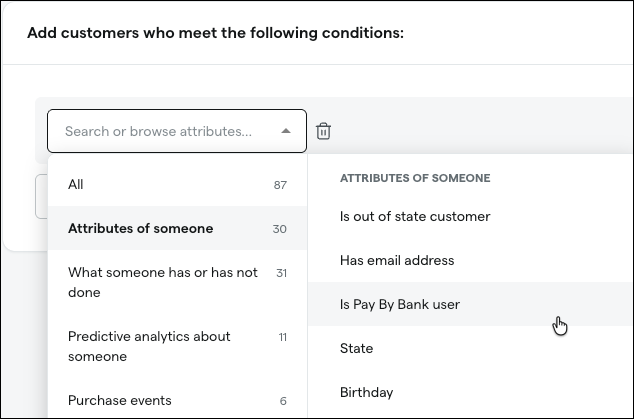
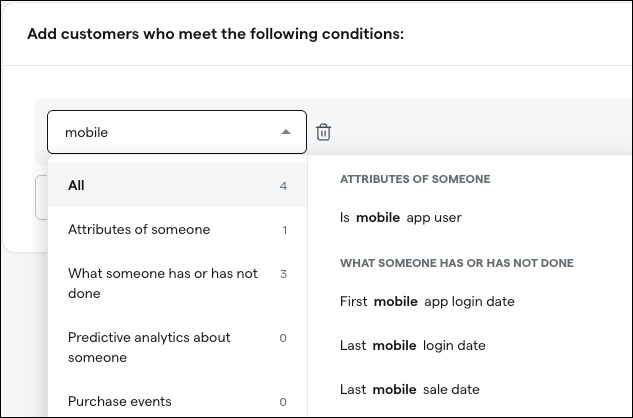
An improved segment builder interface makes it easier to browse attributes at a glance and also adds keyword search to quickly narrow down to your desired attributes.
Inactive segments will now be hidden from the campaign and workflow builders.
Loyalty adjustment reasons will now appear in a Comment column when viewing customer loyalty history in both the Register and Backoffice.
Compliance
Florida: The Data From BioTrack section on inventory detail pages will include several additional metadata fields to give you more complete visibility into your BioTrack compliance data in in Dutchie.
Medicated Usable Weight — the medicated usable weight reported by BioTrack
Location License — the BioTrack location license associated with the package
Is Sample — indicates whether the package is a sample
Restocked — indicates whether the package has been restocked
Remediation Eligible — indicates whether the package is eligible for remediation
Remediated — indicates whether the package has been remediated
Fixes
We’re releasing fixes for the following issues:
We’re deploying a fix that will allow for faster scanning at higher volumes when scanning inventory for counting, searching, or audits.
The BioTrack integration will fall back to cached manifest data when rate-limited, instead of throwing an error.
Discounts will activate at the correct local time for locations in different time zones under the same operator. Previously, discounts could start early or late at locations not in the default Eastern time zone.
Campaign recipient lists will no longer show duplicate entries when scrolling or changing page size.
The Strain dropdown in Batches will returns all available strains when searching, instead of limiting results to the first 20 loaded alphabetically.
Discount wizard product filtering will no longer cause the browser to hang or crash for operators with large product catalogs (10,000+ items).
Bulk receive uploads (CSV/URL) will no longer set an invalid Delivered on date that prevents the Receive button from enabling in Safari and Firefox.
We’re deploying a fix for an issue where some packages may not appear in the Batches page.
The Create packages action will display a warning when the source quantity used doesn't match the total child package quantities, helping prevent unintended conversion loss.
The Edit Location Product Master permission requires users to also have the Edit Product Detail permission in order to edit location details. This fix makes these permissions function independently and users with only the Edit Location Product Master permission can edit location details without needing additional permissions.
We’re deploying a fix for an issue that may cause inventory adjustments to appear in Metrc as the day before the adjustment was actually made in Dutchie.