- DATE:
- AUTHOR:
- Dutchie Product Team
Dutchie E-Commerce: Images as homepage sections; offer names display on product cards and listing pages; tipping options in Mobile App
Here’s what’s new in Dutchie E-Commerce:
E-Commerce
Images as homepage sections
Homepage sections now support linked images that can function as interstitials between product carousels. Go to Customize > Homepage > Add Sections and select Image.

Select which Platforms where you want to show the image (Web, Kiosk, Mobile App) and enter an optional link URL.

For Web and Kiosk, select whether the link should open in a new tab or the current tab. For Mobile App, if the linked page isn’t available inside the app, it will open in a browser.
Add Image Alt Text to improve accessibility and SEO.
Offer names on product cards and listing pages
We've replaced the static Special Offer badge on product cards and product listing pages with specific offer names (e.g., "20% Off Flower", "BOGO Edibles") so consumers don’t have to click through to see which offer(s) the product qualifies for.
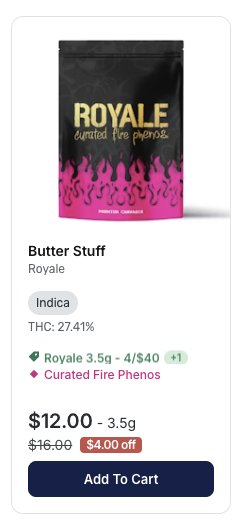
Rotating Offer Display: When multiple offers apply to a product, the badge cycles through each offer name with a smooth slide animation.
Offer Count Badge: Shows how many offers apply to the product.
Smart Timing: Uses randomized intervals (2.5-7.5 seconds) to prevent all cards from animating simultaneously.
Graceful Fallback: If offer names aren't available, "Special Offer" or "Offer" appears instead.
Multi-image product card display
Consumers can now hover or touch to view all available product images within the product card on both web and mobile.

Mobile App
Tipping options now appear in the mobile app checkout.