- DATE:
- AUTHOR:
- Dutchie Product Team
Dutchie POS: ‘Redeem loyalty’ button in cart; Customer loyalty history; Easier validation of users' Metrc API keys; Scan Retail IDs in inventory audits; fixes
Projected release dates: 5/11/26-5/14/26. Subject to change.
Enhancements
Loyalty
Redeem loyalty button
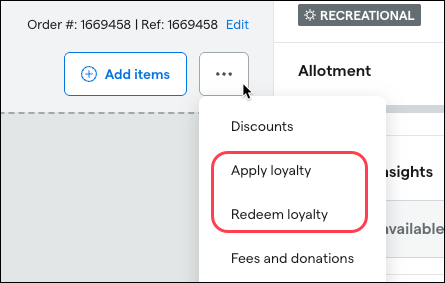
The Apply loyalty / Redeem loyalty actions will soon move from the cart-level options button (…) to a more prominent position at the top of the cart so budtenders have a clear visual cue to inform customers of their available rewards and ask if they’d like to apply them.
Current location:
New location:
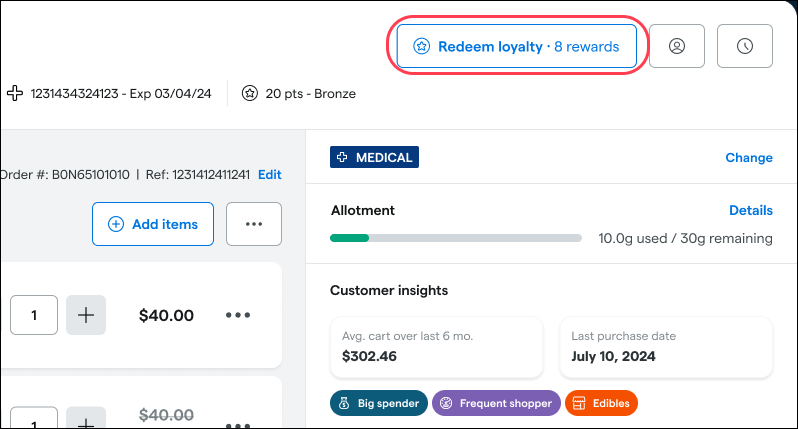
If your loyalty program is configured to apply loyalty points toward discounts, the button will show available rewards points; if your loyalty program is configured to apply loyalty as a payment method, it will show a dollar value. Learn more in the Help Center.
Customer loyalty history
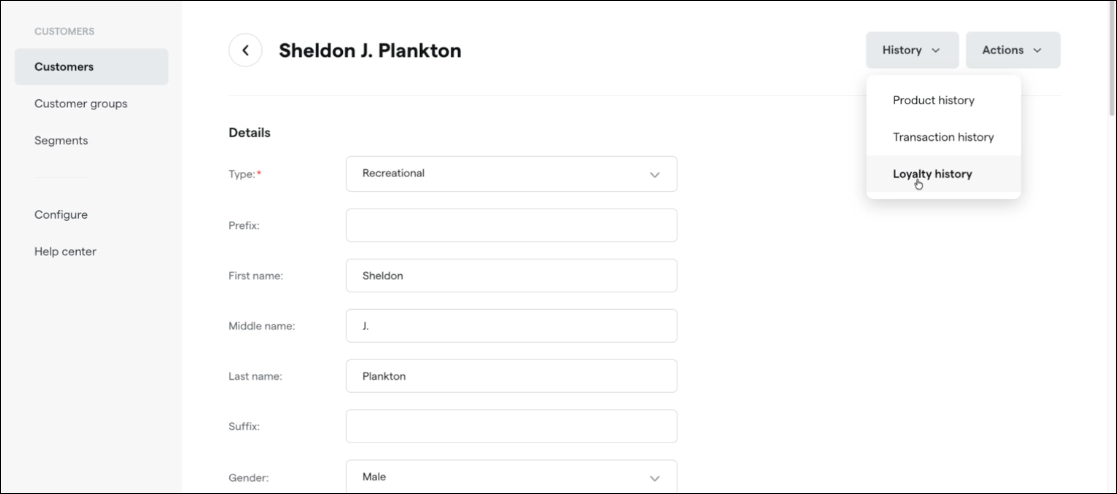
View a customer’s loyalty point history in the Backoffice by opening a customer profile, then History > Loyalty history.
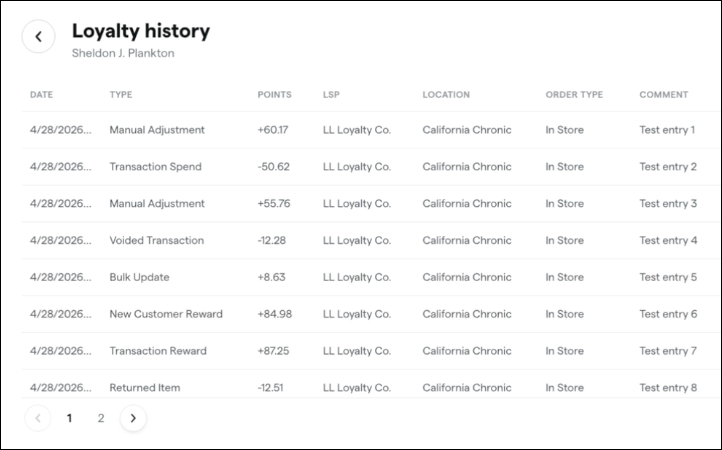
Or, view a customer’s loyalty point history in the Register by opening a customer profile, then History > Loyalty.
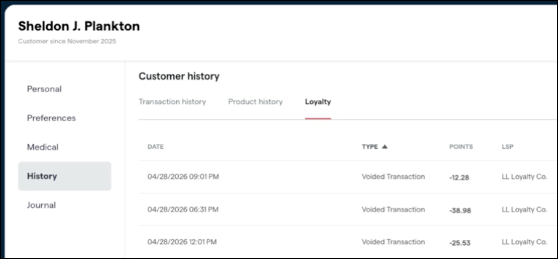
Learn more about customer loyalty history in the Help Center.
Compliance
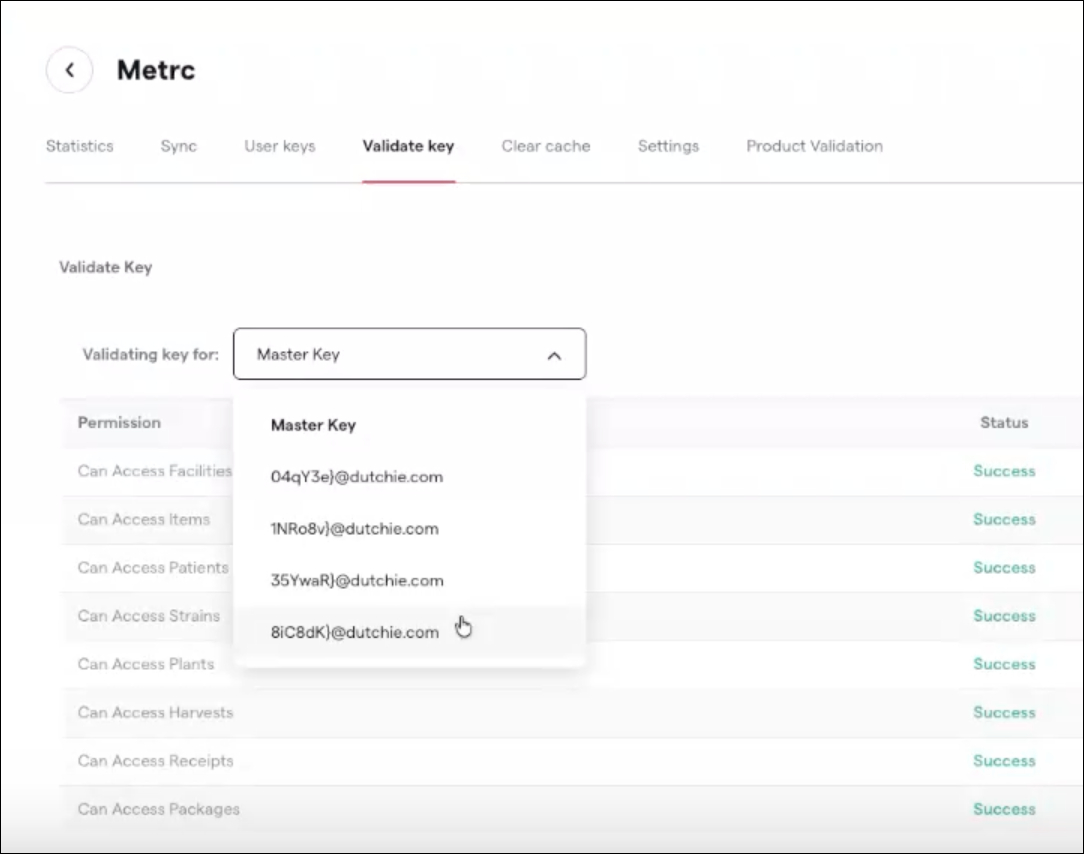
Quickly and easily validate your employees' Metrc API keys with a new user dropdown on the Validate key tab. This allows any user with access to Metrc settings to test any other user’s key. Go to Settings > Integrations > Metrc > Validate key and select a user from the Validating key for dropdown.
Inventory audits
We’re adding support for scanning Retail ID QR codes in inventory audits. Previously, audit scanning only supported package tag scanning — meaning users in Metrc Retail ID markets had to manually look up packages during audits. Now, scanning a Retail ID QR code in the audit search bar will automatically identify and filter to the matching package(s), just like it already works on the Inventory list page. This will also support scanning to add a package to an audit, with the search bar in the Add Package modal also recognizing scanned Retail ID QR codes.
Discounts
When configuring a discount and selecting the eligible products, product search only matches on product name and SKU, making it difficult to find products when you don’t know their exact names or SKUs. To solve this, we’re updating product search within discount configuration to match on all of the following product attributes:
Product name
SKU
Strain
Weight
Category
Master category
Brand
Vendor
Product ID
Product tags
Catalog tags
Catalog
Product detail pages in the Catalog will have a new View inventory link below the product name, which will navigate to the inventory page filtered by the product's SKU. This link will appear for users with the View Inventory permission when the product has active packages assigned to it.
Campaigns
Campaign performance reporting will soon include average order value (AOV), and percentages will include two decimal points for greater precision.
Dutchie Public API
The Get Products endpoint now includes a new orderedImages field that exposes the display order of product images set in the Backoffice catalog. Each entry in the array contains the image data along with an explicit sortOrder value, so you can programmatically determine the intended order of product images without relying on array position.
The existing images field remains unchanged — no updates to your current integration are required.
Fixes
We’re releasing fixes to address the following issues:
Selecting Manage Retail IDs > View Retail IDs for a given package is intended to show only the IDs from a given package that were sold by scanning the Retail ID QR code, not all IDs associated with the package. However, this is unclear to users, especially when no items have been sold by scanning the QR code, in which case and a generic "No data available. We were unable to find data that matches what you're looking for. Please try again." message appears. To avoid this confusion, we’re updating the text that appears here to be more informative.
On patient profiles in the Register, once there is a selection in the Doctor's name dropdown, users can only switch doctors but can’t remove the selection. To address this, we’re adding a selectable None option to the dropdown.
Customer segment analytics may show inaccurate metrics for segments with transaction count or dollars spent criteria.
When editing a discount with no conditions or filters, changes to other checkbox-based settings such as Include non-cannabis items do not persist after saving
Tax rates with Apply to wholesale transfers set to No erroneously apply to outgoing wholesale manifests when the destination is a different LSP.